
How OtterSR works
The whole path, from a file of references to a written review.
There is no demo video yet. These are screenshots of the real application, regenerated from a seeded demo review on every release, so nothing here is a mock-up.
Import your references
Drop a RIS, NBIB, PubMed or CSV file and OtterSR reads it, guesses which column is which, and shows you the result before anything is saved. You correct the mapping if it guessed wrong. You can also search PubMed, Europe PMC, Crossref, OpenAlex and ClinicalTrials.gov from inside the app and collect results into the same library.
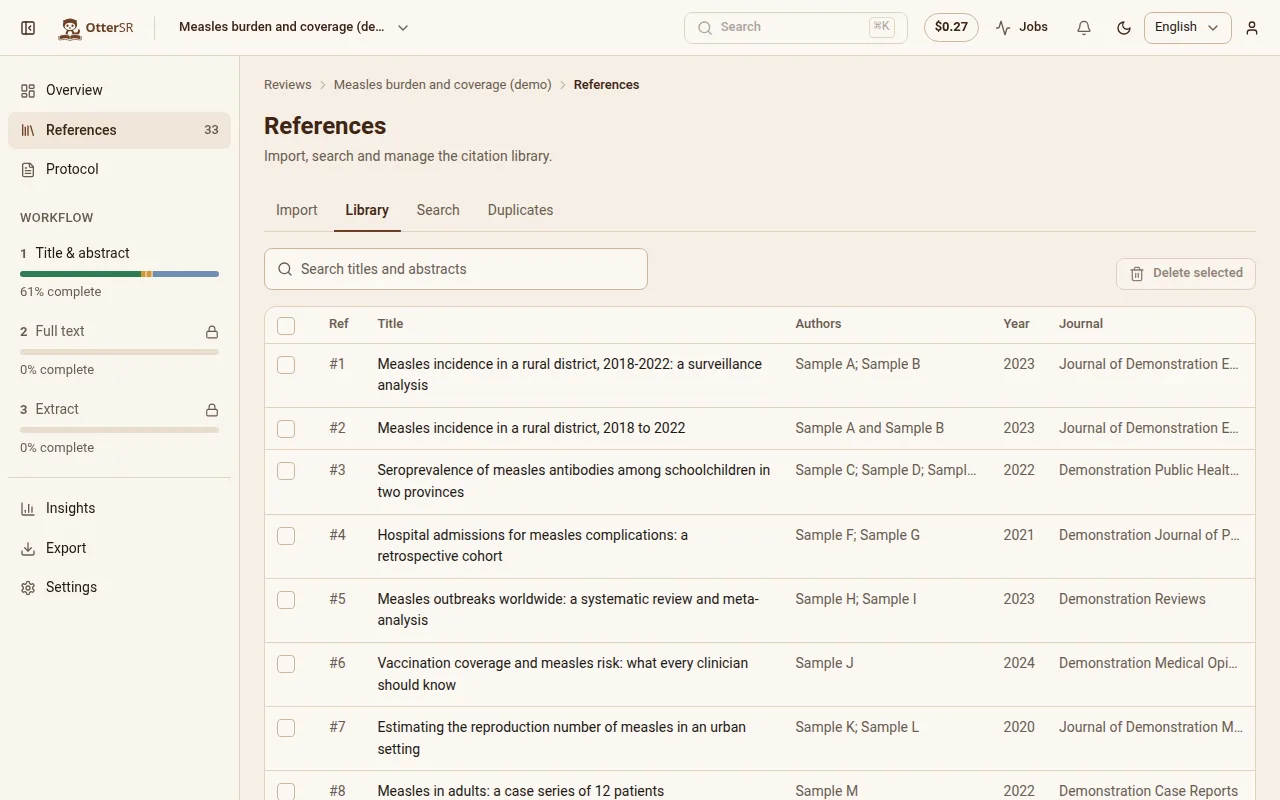
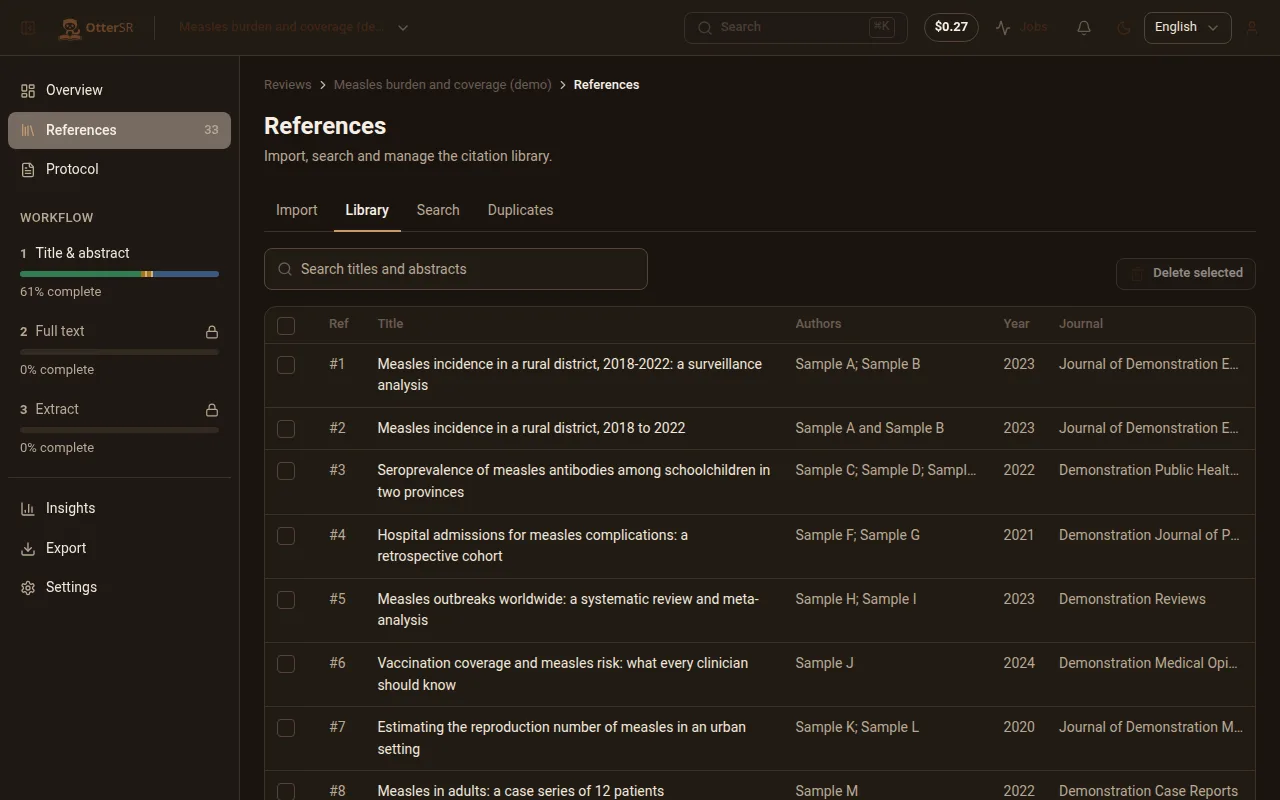
Nothing is charged for importing, however large the file, and nothing is written until you confirm.
Deal with duplicates before they cost you
The same study arrives from three databases under three slightly different titles. OtterSR groups the candidates, shows you the records field by field side by side, and suggests which one to keep — the most complete. You confirm with the keyboard.
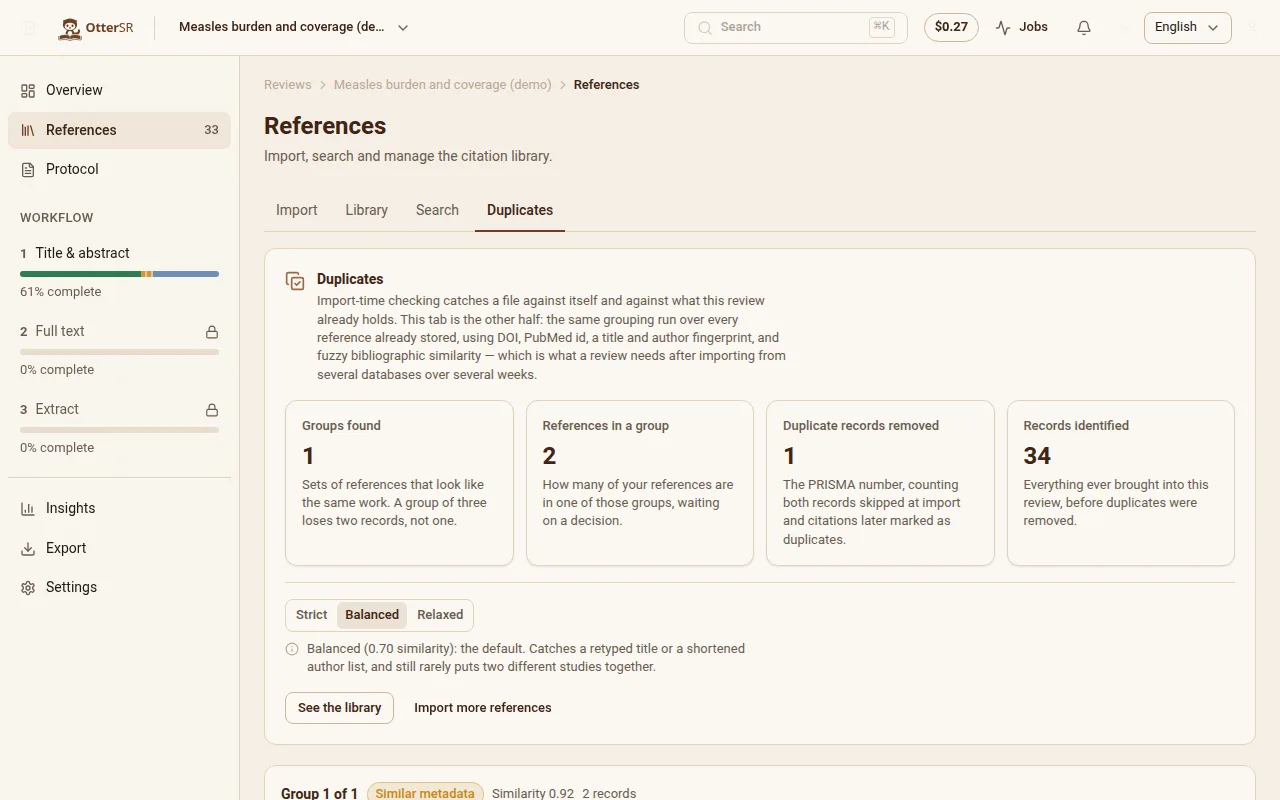
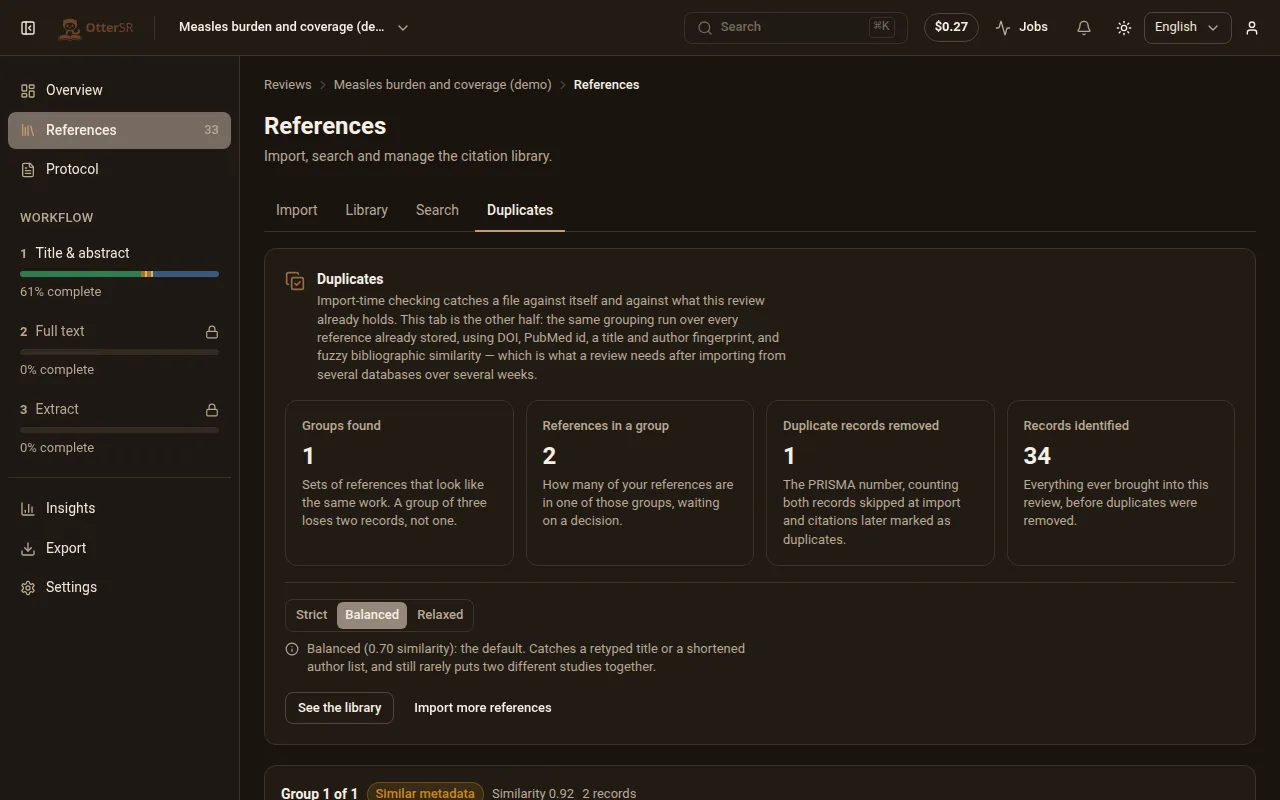
Removal is a soft delete, so a removed duplicate still counts as “identified, then removed” in your PRISMA diagram and can be undone. Removing duplicates never raises a completion percentage.
Write the protocol
Each eligibility question gets its answer options, and each option is tagged include, exclude or neutral, so the software knows what an answer means rather than guessing from the wording. Add guidance in your own words for the borderline cases. Protocols are versioned: changing one creates a new version and never silently rewrites decisions already made.
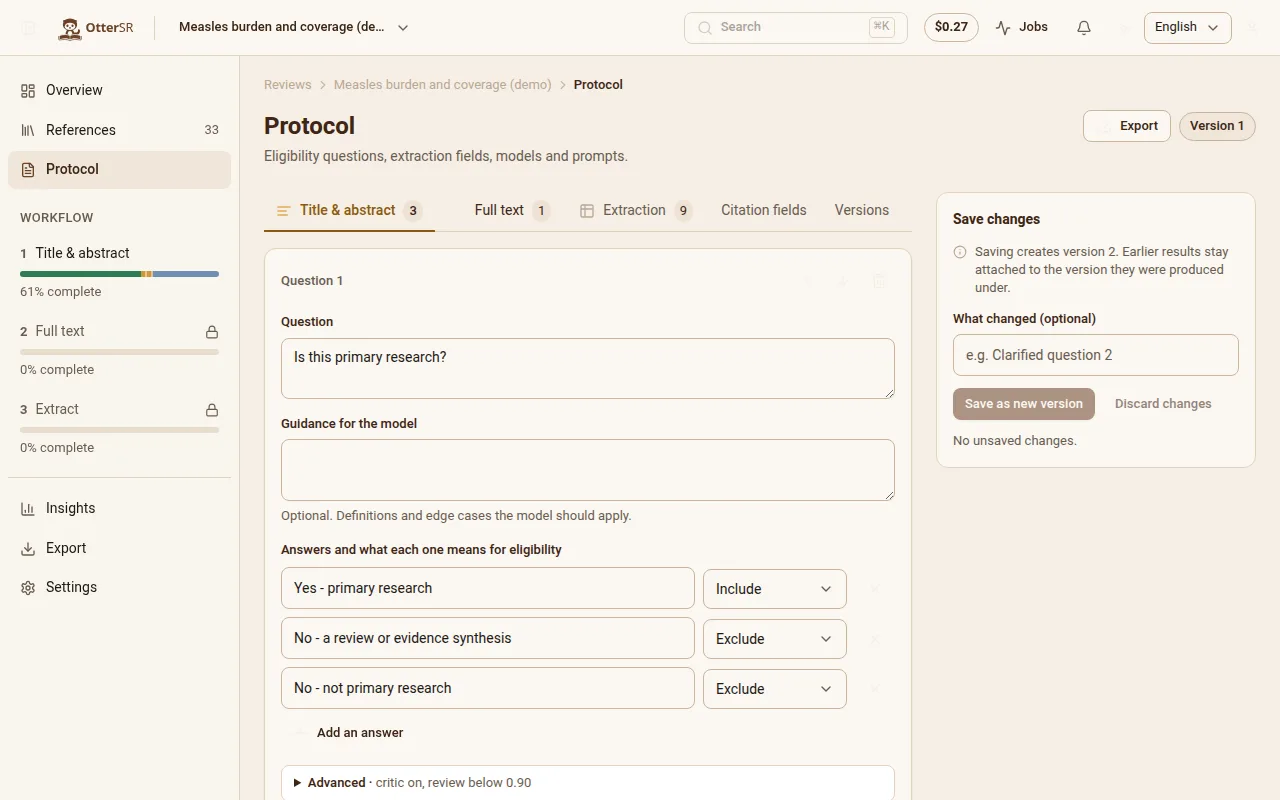
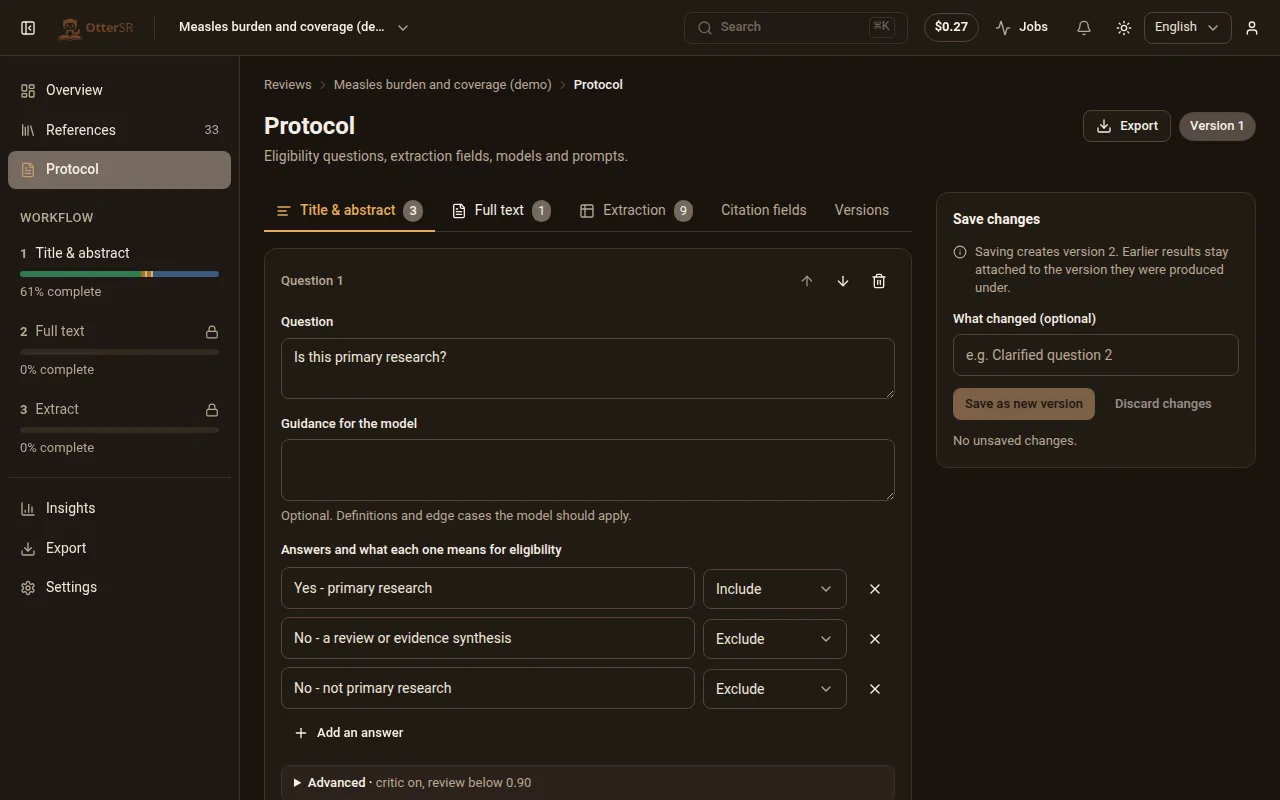
Start from a template, import a colleague's protocol file, or write your own. The file format is plain YAML that survives a round trip byte for byte.
Let the AI go first
Screening runs as a background job you can watch, pause and cancel. Every answer comes back with a confidence score and the sentence it was drawn from. Answers below your confidence threshold are queued for a person; a second-opinion agent re-reads the uncertain ones and flags where it disagrees.
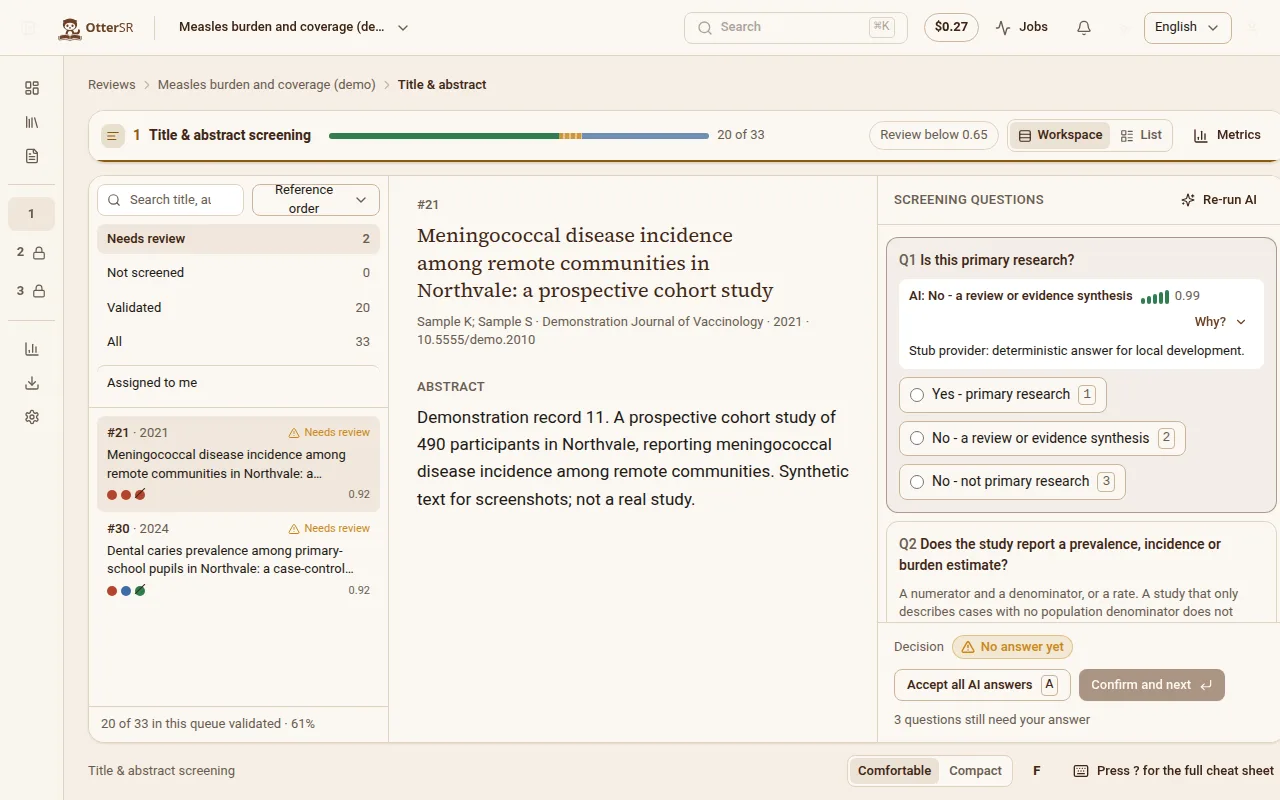
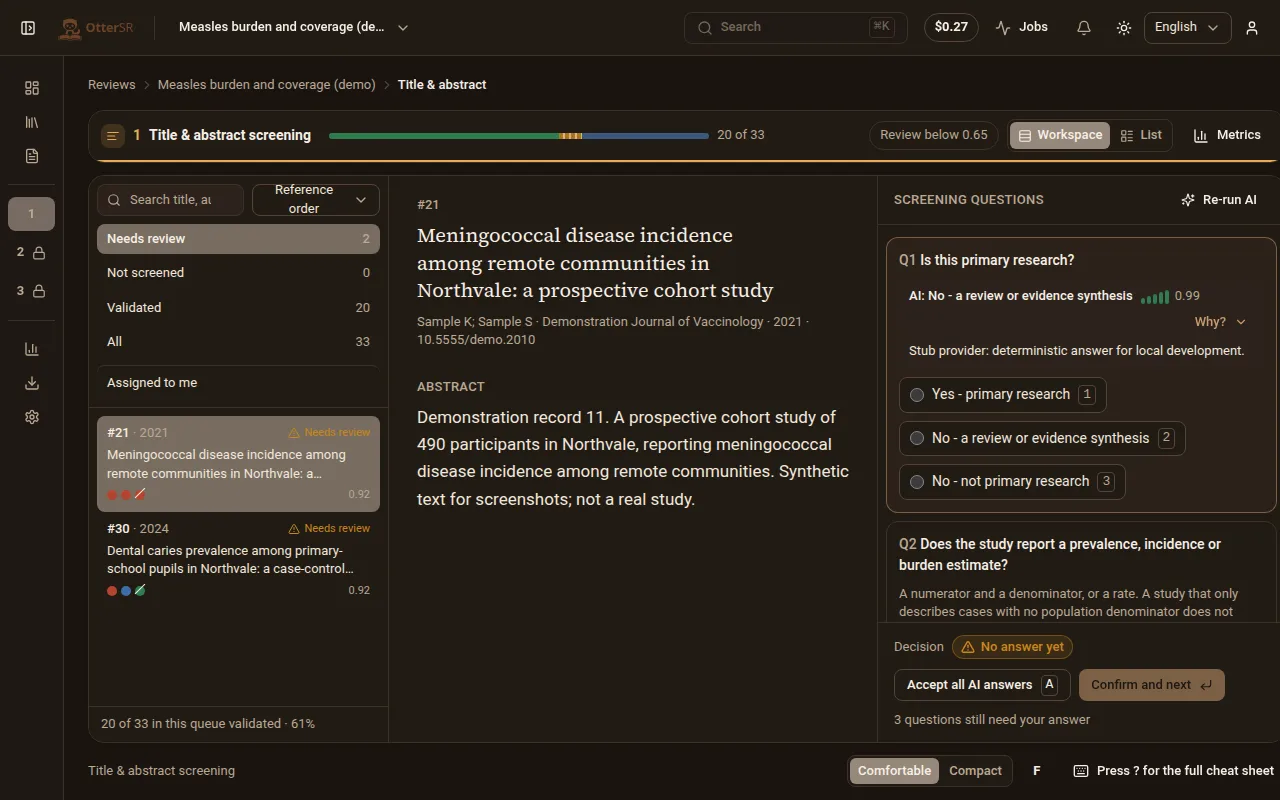
The AI never fills in your answer for you. Accepting it is a keystroke, but it is your keystroke — unless you deliberately turn on auto-accept for a rule you have tested.
Find out whether to trust it
As you validate decisions, OtterSR measures agreement, sensitivity and calibration against your own work, and shows the sample size beside every figure. The confidence threshold control sits next to that evidence: move it and you see how much work you save and how many includes you would have missed.
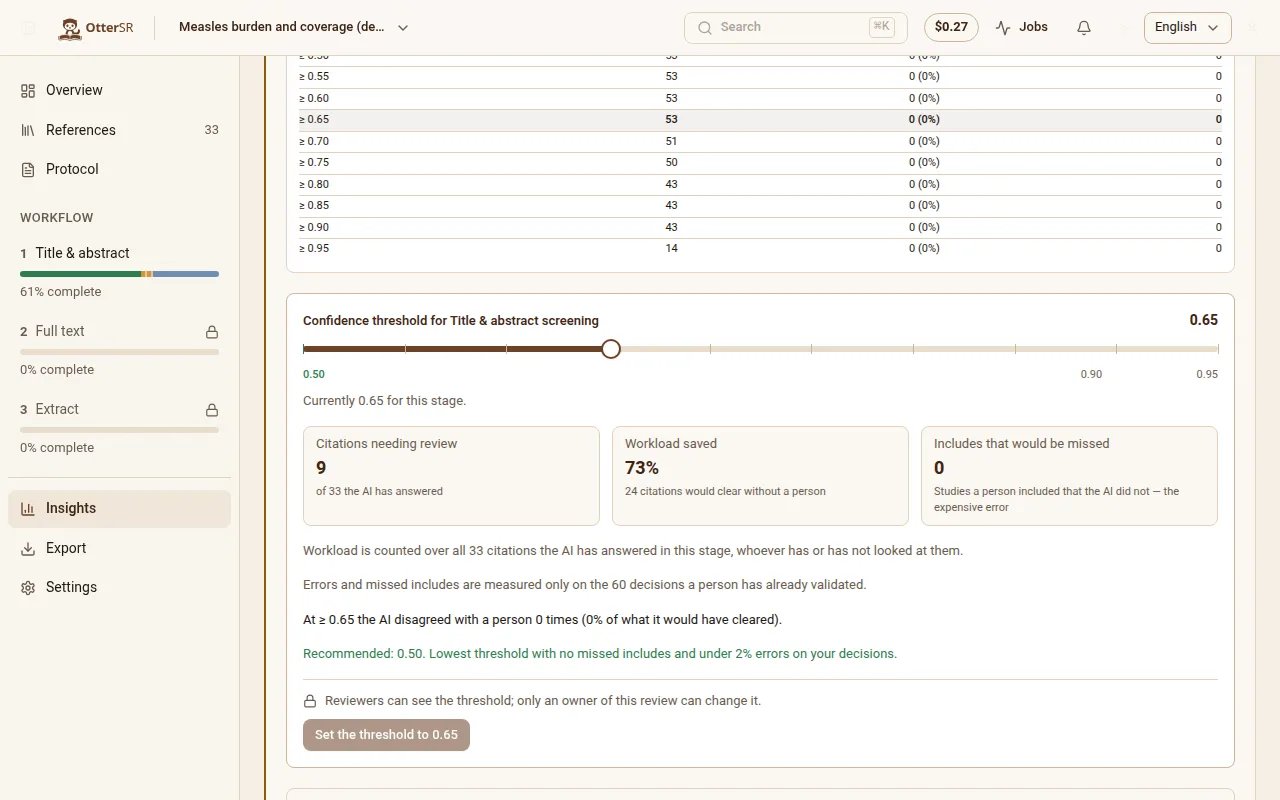
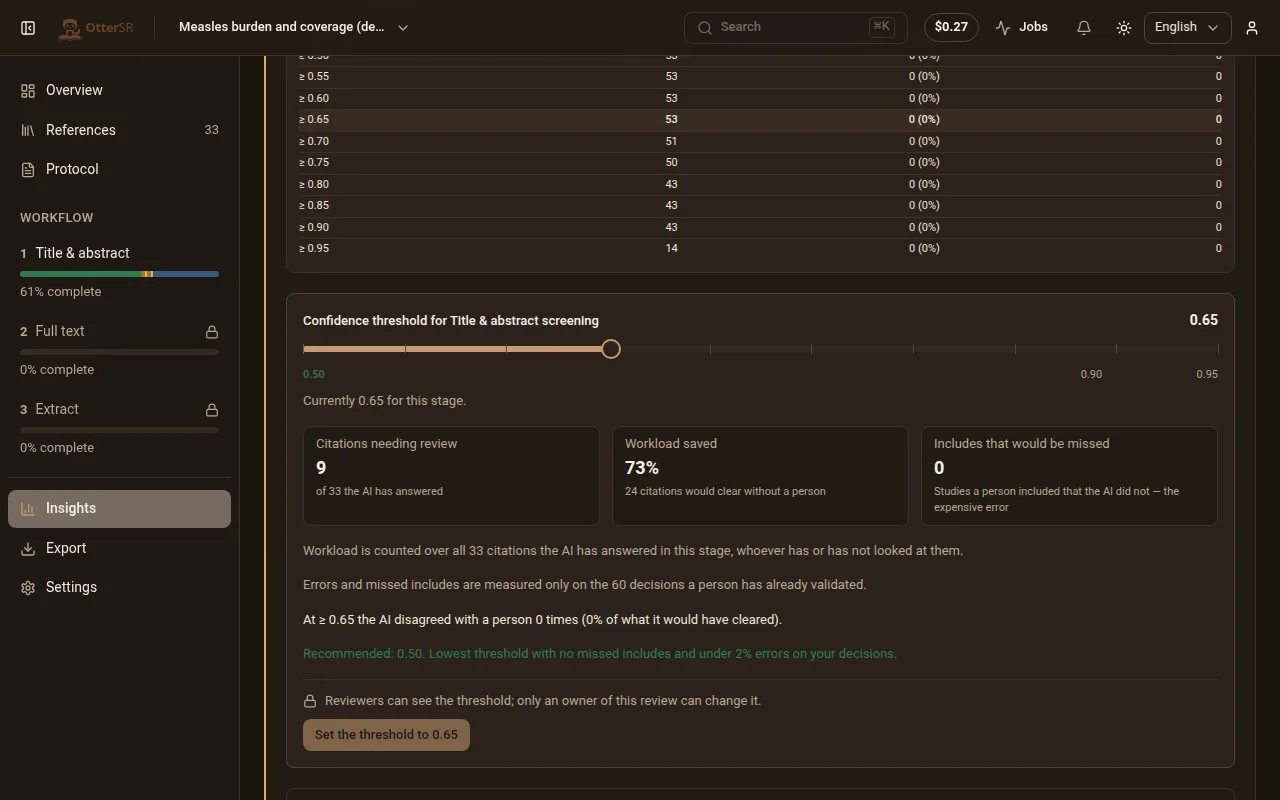
Below a meaningful sample the app says so rather than printing a number. Changing the threshold re-sorts the queues; it never touches a decision a human made.
Move to full text
Citations you included move to full-text screening. Upload PDFs, and the text is extracted so answers can cite a passage on a page. The overview keeps a live PRISMA flow: identified, duplicates removed, screened, sought for retrieval, assessed, excluded with reasons, included.
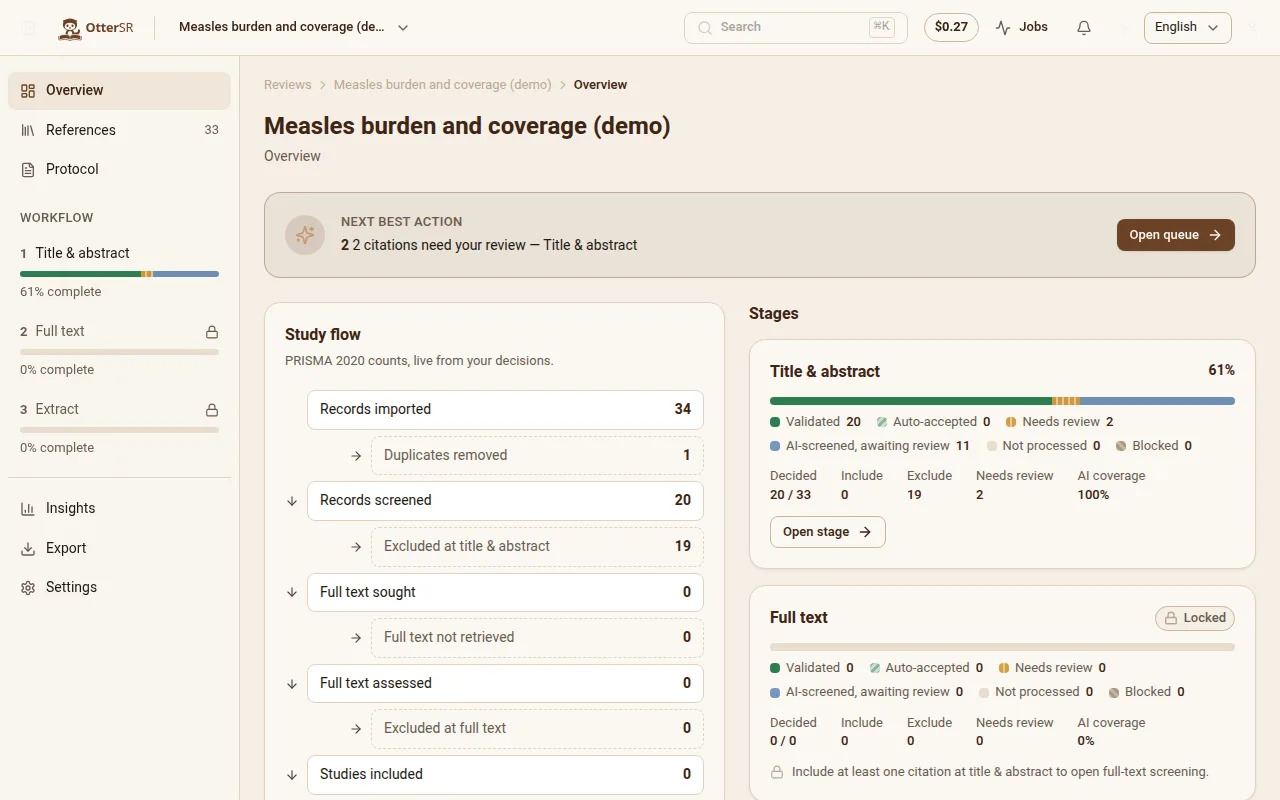
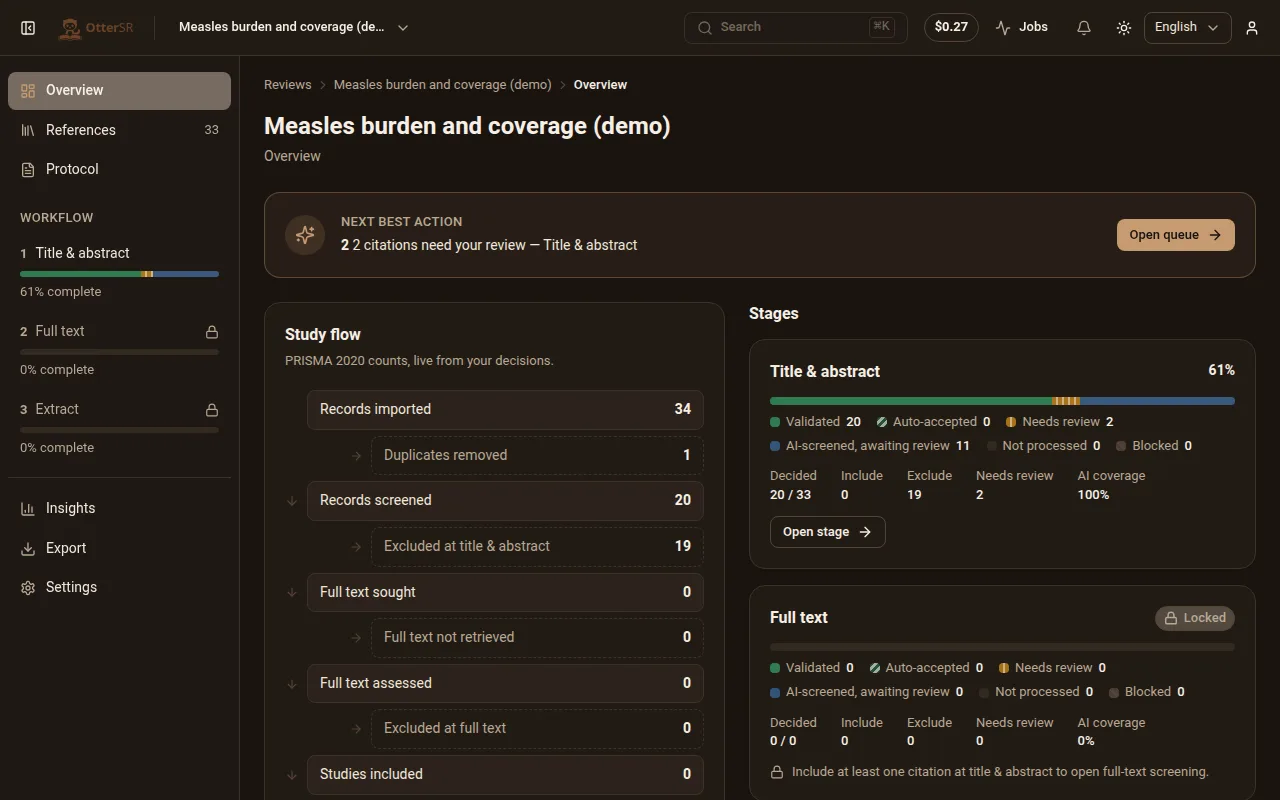
A citation with no PDF is shown as blocked with the reason, rather than being quietly skipped.
Extract, then export
Define the fields you need — population, design, outcome, effect size — and the AI proposes values with the passage each came from. Export the result as CSV, Excel, RIS or an R dataset, with a PRISMA diagram whose numbers match the export, and a methods paragraph describing what was actually done.
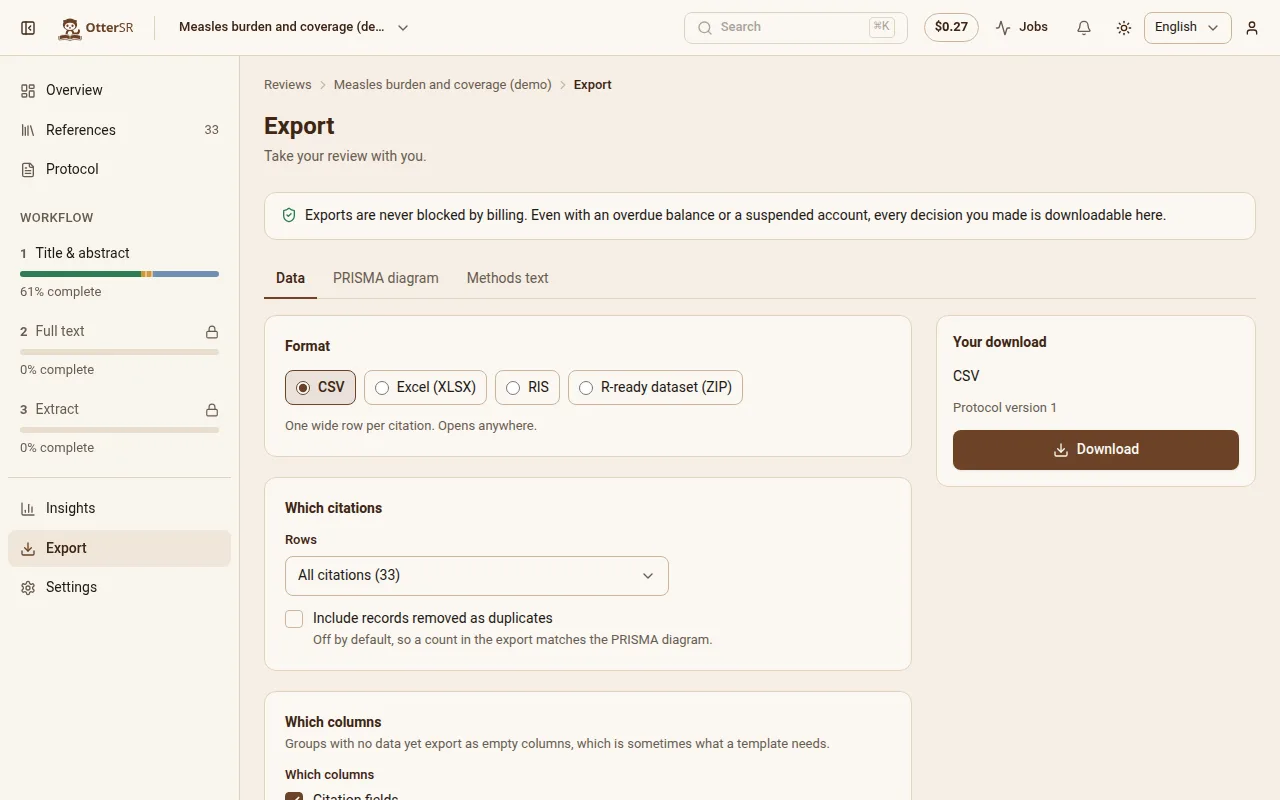
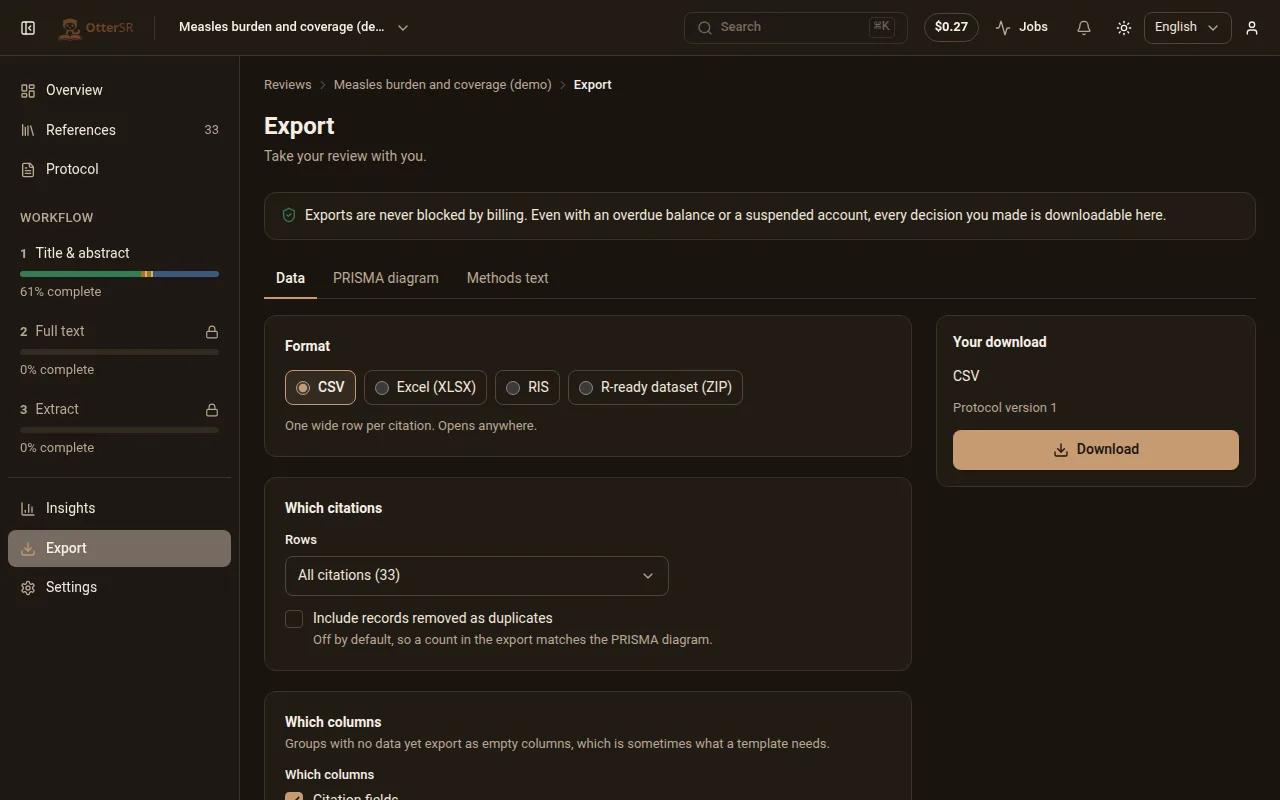
Exports are never blocked — not while a payment is overdue, not over budget, not ever.
Write the review
Ask for a table, a forest plot, a PRISMA flow or a results paragraph. AI makes it from your extracted data, cites your studies and quotes the papers word for word. A request the data cannot support is declined, never invented.
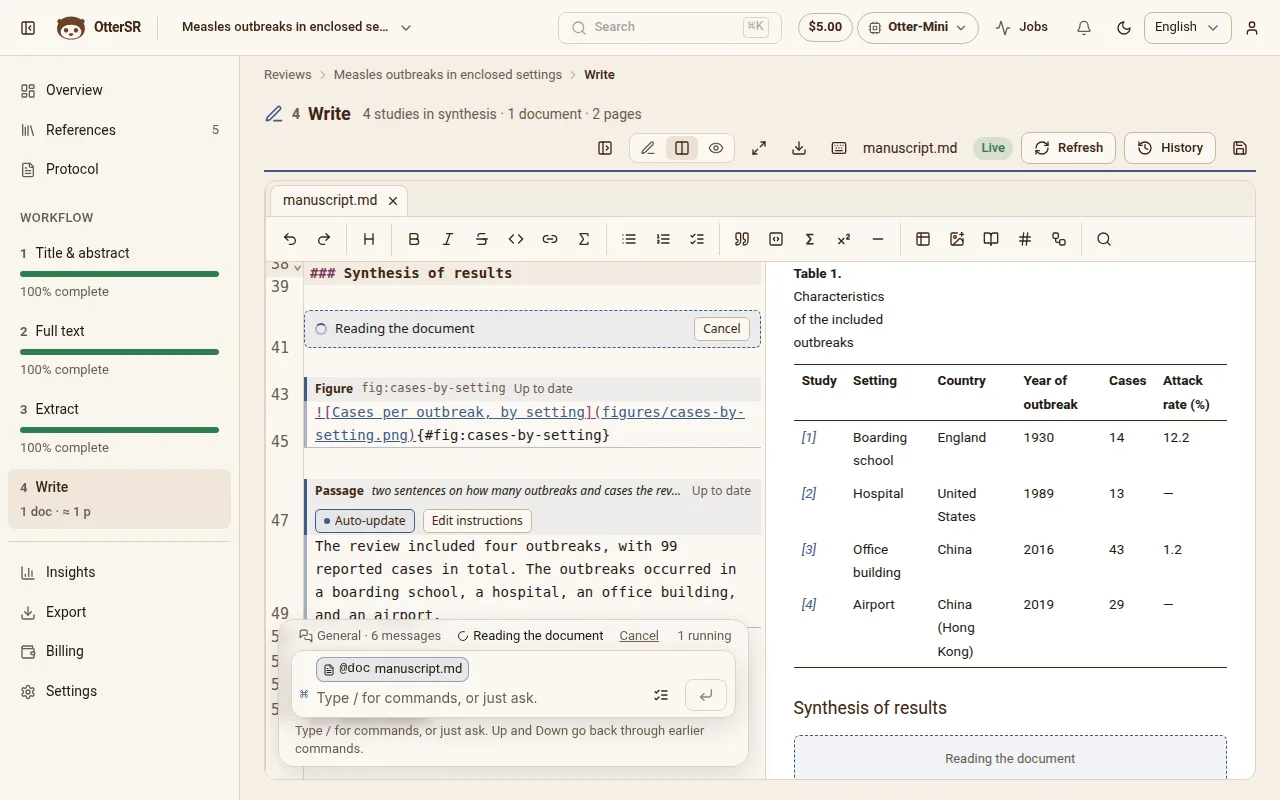
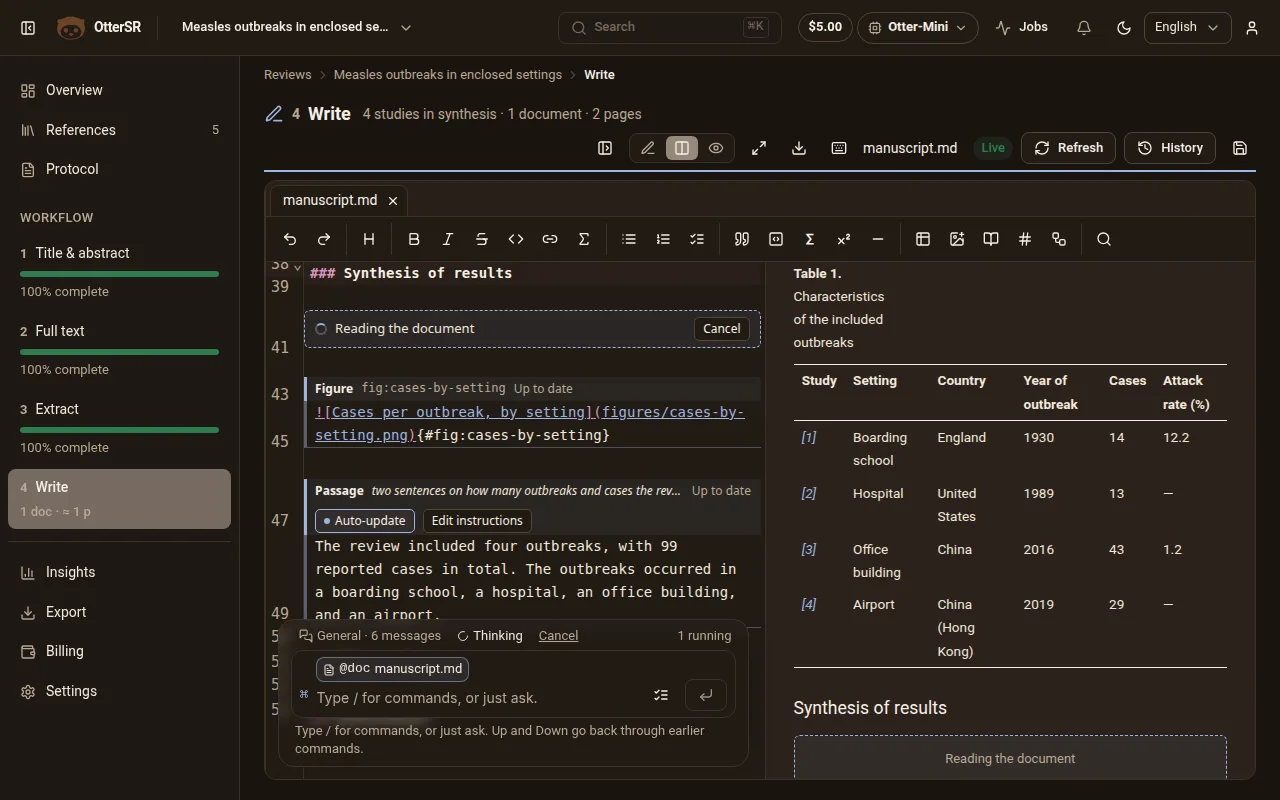
Figures and tables stay tied to their data and refresh when it changes. Export the manuscript as a PDF.
Try it on the sample review
A ready-made review with clearly-labelled demo references and a protocol. Nothing is screened until you say so.